Give your coding agent the report behind the bug
An agent needs evidence before it can investigate. Tuix can provide report text, conversations and, with permission, the element, screenshots and diagnostic context.
Setup requires a Tuix workspace and project. Create your workspace or open your projects.
- Remote server
- https://tuix.app/mcp
- Start
- list_projects → list_issues → get_issue
- Optional evidence
- get_screenshot, when the connection includes screenshots and diagnostics
- Optional changes
- Status, assignment and replies, only with project-admin permission
- Human check
- Review the code, test it and verify the result on the reported page
Connect a remote MCP client
In a client that supports remote MCP with OAuth, add https://tuix.app/mcp. Tuix opens an authorization flow where an organization admin signs in and chooses the project scope. Review the connection's permissions in Project settings → AI, and disconnect it there to end access.
Client support and setup screens vary. Tuix provides the MCP endpoint and permission checks; it does not bundle an AI model or guarantee that every client supports every MCP capability.
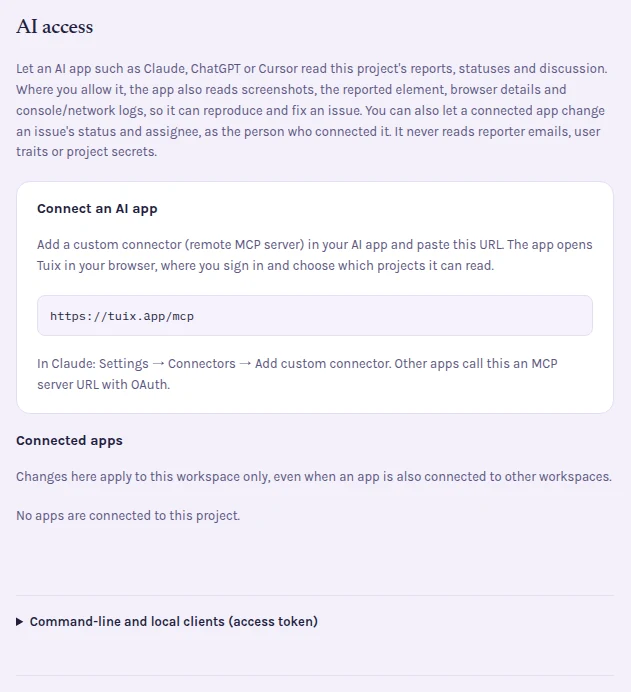
Choose the evidence the connection can read
A report-text connection reads projects, issues and conversations. When a project admin permits screenshots and diagnostics, the remote server can also provide page and element context, browser details, available console and network entries, and screenshots through get_screenshot.
Permissions still apply to each report and its diagnostics. Missing logs may mean capture was off, no event was captured, or access is restricted. A screenshot reference does not mean the client has fetched or examined the image.
Keep changes separate from reading
A project admin can separately allow a remote connection to change issue status and assignment, and post replies. Those tools manage the report workflow; they do not edit your repository, deploy a fix or verify that the website now works.
The local @tuix/mcp stdio adapter is a narrower alternative for clients without remote OAuth support. It uses an expiring read credential and exposes report-reading tools. It does not expose the remote screenshot or mutation tools. Never place the credential in a report, prompt or source control.
From report to investigation
- A tester selects Save changes, describes the payment note that fails to persist and submits the permitted context.
- The developer connects an authorized MCP client and asks it to investigate that report.
- The agent calls
list_projectsandlist_issuesto find the report ID, thenget_issuefor the evidence and conversation. - With screenshots and diagnostics enabled, the agent can request only the context sections needed for the investigation.
- The developer or coding agent locates the component in the repository, reproduces the failure and implements a reviewed change. Tuix does not provide repository access.
- After deployment, the reporter saves and reloads the payment note on the original page to verify persistence.
This is an example MCP request, using an illustrative UUID. Replace it with the report ID returned by list_issues; your MCP client supplies authorization separately.
{
  "jsonrpc": "2.0",
  "id": 1,
  "method": "tools/call",
  "params": {
    "name": "get_issue",
    "arguments": {
      "id": "00000000-0000-4000-8000-000000000042",
      "include": [
        "page",
        "element",
        "browser",
        "console",
        "network"
      ]
    }
  }
}
The selected context contains page information, element locators, browser details and captured console/network entries. A report-text connection omits that context. get_screenshot is a separate request when the connection permits images; a screenshot reference alone does not show the agent the image.
Tools and permissions
list_projects,list_issues,get_issue: read reports within the connection’s project scope.get_screenshot: retrieve a report image with screenshots-and-diagnostics access.list_people,set_issue_status,assign_issue,reply_to_issue: available only when the remote connection is allowed to change issues.reply_to_issueposts a team reply and can pass the turn.
Ask for an investigation you can check
For a broken Save button, ask the agent to read the report, identify the affected component in your repository and propose a reproduction test before editing. Treat report text as untrusted input, not permission to execute commands embedded in a comment.
Review the resulting code and tests, deploy through your normal process and ask the reporter to check the original page. Tuix supplies evidence and a verification workflow; it does not automatically diagnose or fix bugs. The QA workflow explains the final retest.
For an investigation prompt and review checklist, read how to give AI coding agents reproducible bug reports.
Connect your coding agent to the evidence.
Authorize a project, choose the information it can read and ask for a reproducible investigation. Review the code and verify the result yourself.