Collect feedback directly on WordPress pages
Review a heading, image or layout on the rendered page. Tuix Feedback uses the WordPress login of your selected editorial roles, so the discussion stays beside the content.
Setup requires a Tuix workspace and project. Create your workspace or open your projects.
- Review note
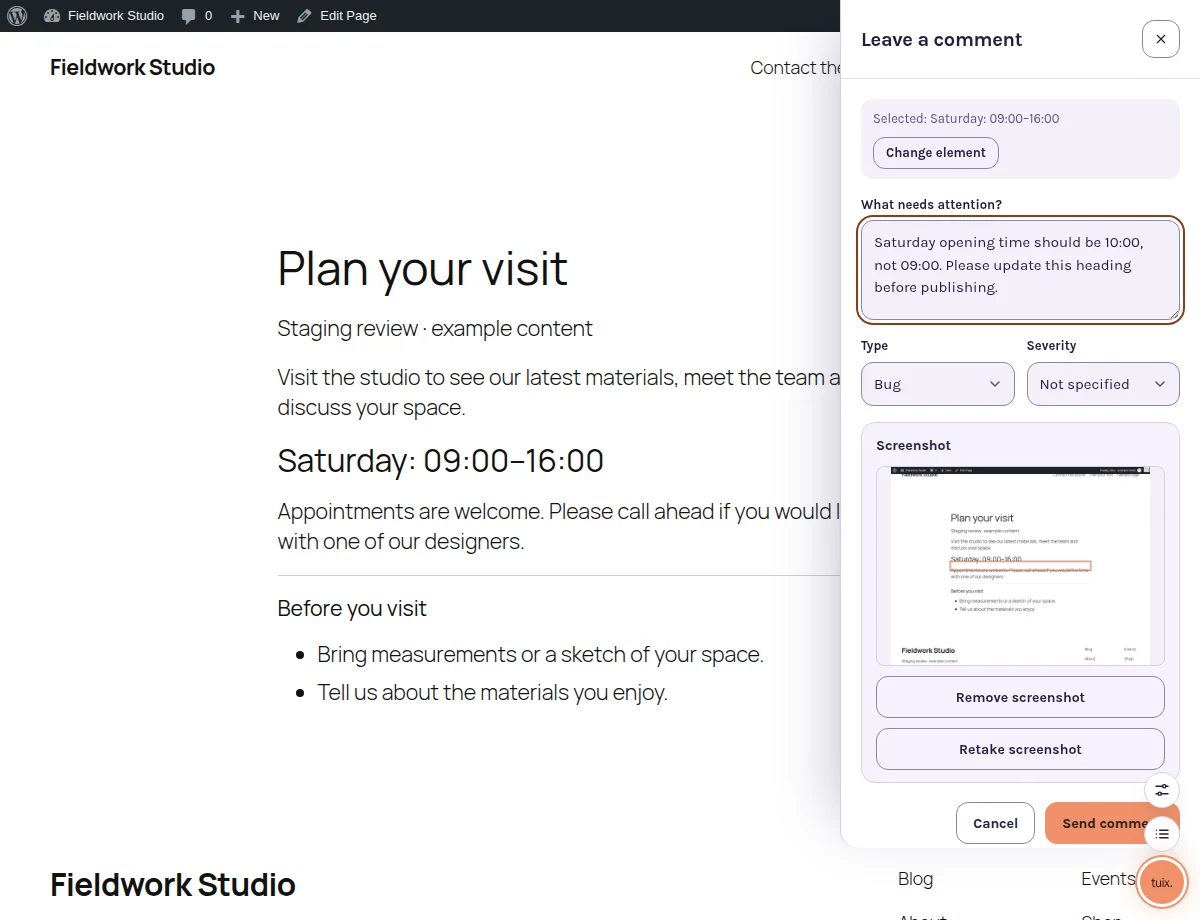
- Saturday opening time should be 10:00, not 09:00.
- Reporter
- Signed-in WordPress Editor
- Plugin settings
- Settings → Tuix · environment uat
- Access
- Administrators and Editors by default
- Verification
- Reopen the visit page and check the Saturday heading.
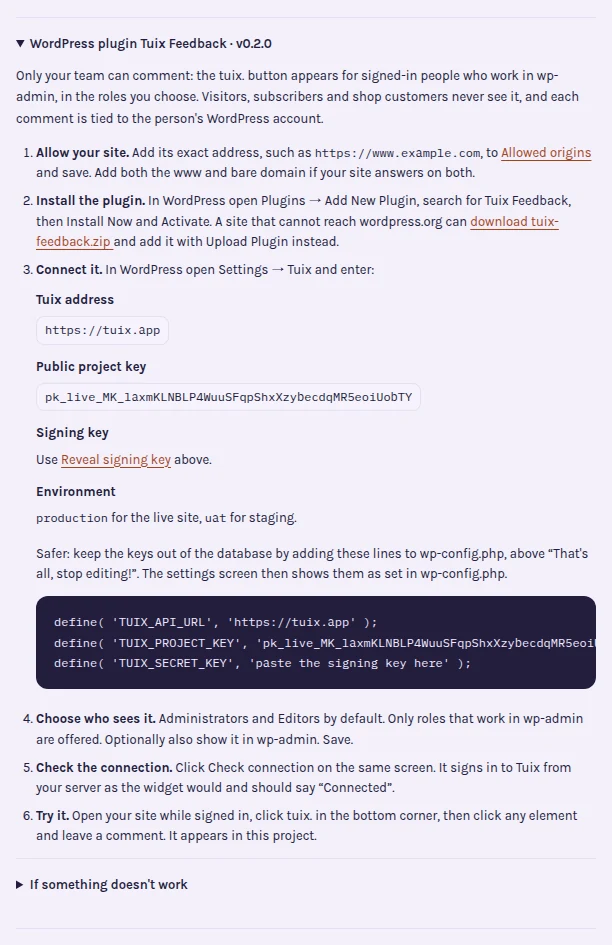
Install the Tuix Feedback plugin
- Create a Tuix workspace and project. In Project settings, add your site's exact origin to Allowed origins. Configure staging separately, for example with the environment
uat. - Download Tuix Feedback. In WordPress, open Plugins → Add New Plugin → Upload Plugin, select the ZIP and activate it.
- Open Settings → Tuix. Enter
https://tuix.app, the public project key and the signing key from your Tuix project. Keep the signing key on the server; never paste it into a theme's browser JavaScript. - Set the environment and choose the eligible roles that should see the widget. Administrators and Editors are selected by default. Showing it in wp-admin is optional.
- Save and use Check connection. Then visit a page while signed in as an eligible user and leave a test note.
The plugin declares WordPress 6.3 or later and PHP 7.4 or later. Its configuration can also be pinned with TUIX_API_URL, TUIX_PROJECT_KEY, TUIX_SECRET_KEY and TUIX_ENVIRONMENT in wp-config.php.
Who can leave WordPress feedback?
Only signed-in users in selected roles with the edit_posts capability can use this integration. Visitors, Subscribers and WooCommerce Customers do not see the widget. Clients need an appropriate existing WordPress account; do not grant extra editing permissions solely to expose a feedback button without considering what those permissions allow.
The plugin signs the user's identity on the server. Reporters do not need a separate Tuix account to comment. If your review process requires anonymous visitor feedback, this plugin does not provide that workflow.
Review staging and live editorial changes
Use staging for theme and layout changes before release. On a live site, authorized editors can point at a heading or image while visitors continue to see the normal page. Reports can include screenshots and browser context; diagnostic capture follows the project's settings.
In the opening-hours example, an Editor selects the Saturday heading and requests a 10:00 opening time. After the edit is published to staging, reload the same page and check that the heading is correct. Keep a second note for an unrelated navigation problem so each revision can be verified independently.
Connection and caching checks
The allowed origin must match the protocol and hostname, including www if used. Local development needs the local origin and environment. If a cache serves public HTML to signed-in users, exclude those users from caching so the widget can appear. Themes must render the WordPress footer hook for the front-end widget.
The plugin loads the widget from Tuix with a pinned integrity hash and caches its loader configuration. It is not a blanket compatibility guarantee for every theme, cache or page builder. Check the actual review pages after installation, and read the client review workflow before sharing staging access.
Plan the client handoff with the WordPress visual review checklist.
Add visual feedback to your WordPress workflow.
Install the plugin, connect your Tuix project and choose which eligible WordPress roles can review the site.