How to Collect Visual Feedback on WordPress Websites

A WordPress review needs two kinds of access: permission to open the review site and permission to use its feedback workflow. A staging password can satisfy the first without satisfying the second. Establish both before asking a client to review a theme or page.
Separate editorial review from theme testing
An editor may need to check a heading, image crop or link on the rendered page. A theme revision can affect navigation, templates and responsive behavior across many pages. Give reviewers a short list of representative pages and tell them which kind of feedback you need.
For example, a magazine site might include an article with a long title, a category archive and a page containing the newsletter form. These pages exercise different templates. Reviewing only the homepage misses defects that appear elsewhere.
Use staging for changes that could disrupt public navigation or forms. Make the staging build identifiable, and explain when a new version is ready. Do not ask clients to approve a screenshot of a design while developers are testing a different rendered version.
Make each note refer to a visible element
A useful image report could say:
On the article page at phone width, the top of the vase is cropped out. Please preserve the full rim without making the image dominate the article.
Attach a screenshot and identify the image element. Keep a separate report for a broken link in the same article. Separate notes make it possible to accept one fix while leaving another under review.
An email with a screenshot can work for an isolated issue, but a visual feedback tool keeps the note and subsequent questions beside the page. For clients who struggle to name a template or component, selecting the element is often a clearer way to identify it.
Choose reviewer roles deliberately
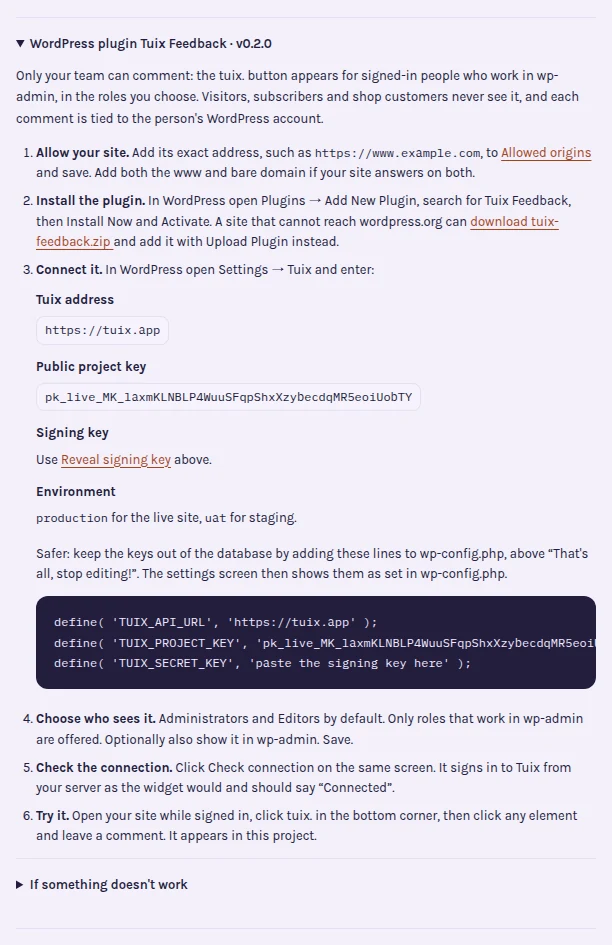
Tuix Feedback, the WordPress plugin in this repository, loads for signed-in users in selected roles that have the edit_posts capability. Administrators and Editors are selected by default. Visitors, Subscribers and WooCommerce Customers cannot use this plugin's reporting workflow.
That restriction matters for client reviews. Do not promote a client to an editing role without considering the additional access it grants. If the client's existing access does not fit the plugin, resolve the review process before installation; a public feedback button is not an available fallback in this integration.
Eligible reporters use their WordPress identity, signed on the server, and do not need a separate Tuix signup to leave a note. Keeping the signing key server-side is part of that setup.
Configure the review environment
The Tuix WordPress installation guide covers the packaged plugin and configuration. The essential sequence is to allow the site's exact origin in the Tuix project, upload and activate the plugin, enter the project and signing keys in Settings → Tuix, select the environment and roles, and run Check connection.
Use a separate environment such as uat for staging. Origins include the protocol and hostname: allowing the bare domain does not automatically allow a different www or staging hostname. Local development uses the local origin and environment.
For repeatable deployments, the plugin also accepts configuration constants in wp-config.php. Keep the secret out of theme JavaScript and screenshots of settings screens.
Check the rendered site, cache and attachments
After installation, visit the actual pages while signed in as a selected role. Check that the theme renders the WordPress footer hook. If your cache serves public HTML to signed-in users, exclude those users from the cache so the integration can appear correctly.
Then make one test report. Review its screenshot and browser context, and verify that the developer can open it. Screenshot and diagnostic availability follow the project's capture settings. A connection check validates connectivity and identity; it does not prove every page builder, cache and template combination works as expected.
Sensitive form fields and editable content are masked by the screenshot implementation. Use additional masking for sensitive page regions and inspect the resulting image before inviting clients to report real content.
Approve the change on the final page
For the vase image, ask the reviewer to reopen the same article at the reported viewport. Check the crop, surrounding text and any other template that uses the same image rule. A correction on one article may affect another image with different proportions.
Confirm the result in the original report. If the crop is still wrong, explain what remains rather than starting an unrelated email thread. Keep formal project approval in your agreed process; on-page verification provides evidence for that decision.
Try Tuix for WordPress when your reviewers' access fits the plugin. The broader client feedback guide helps structure revision rounds, and pricing explains hosted projects and the local-only developer plan.