How to Collect Website Feedback From Clients

Before sending a staging link, tell the client what to review, where to leave notes and how you will decide that a revision is complete. Without those three agreements, even precise feedback can turn into an open-ended approval process.
Agree on the review before collecting comments
Give each review a purpose. A content review checks words, images and links. A layout review checks hierarchy and responsive behavior. A functional review checks whether someone can finish a task. Mixing all three without naming them makes it difficult to separate a defect from a new request.
A useful invitation might say:
Please review the Contact and Services pages on staging by Thursday. Check the text, phone links and enquiry form on your usual device. Leave one note per issue. We will confirm which requests belong in this revision before making changes.
The date above is an example, not a universal deadline. Choose a review window your client can actually meet. Include any login instructions and make sure the client can reach the version you want reviewed.
Choose an appropriate feedback channel
Email works for a short decision such as approving a headline. It becomes harder to manage when replies refer to different page versions or contain several unrelated changes. Forwarding the thread to a developer does not resolve those ambiguities.
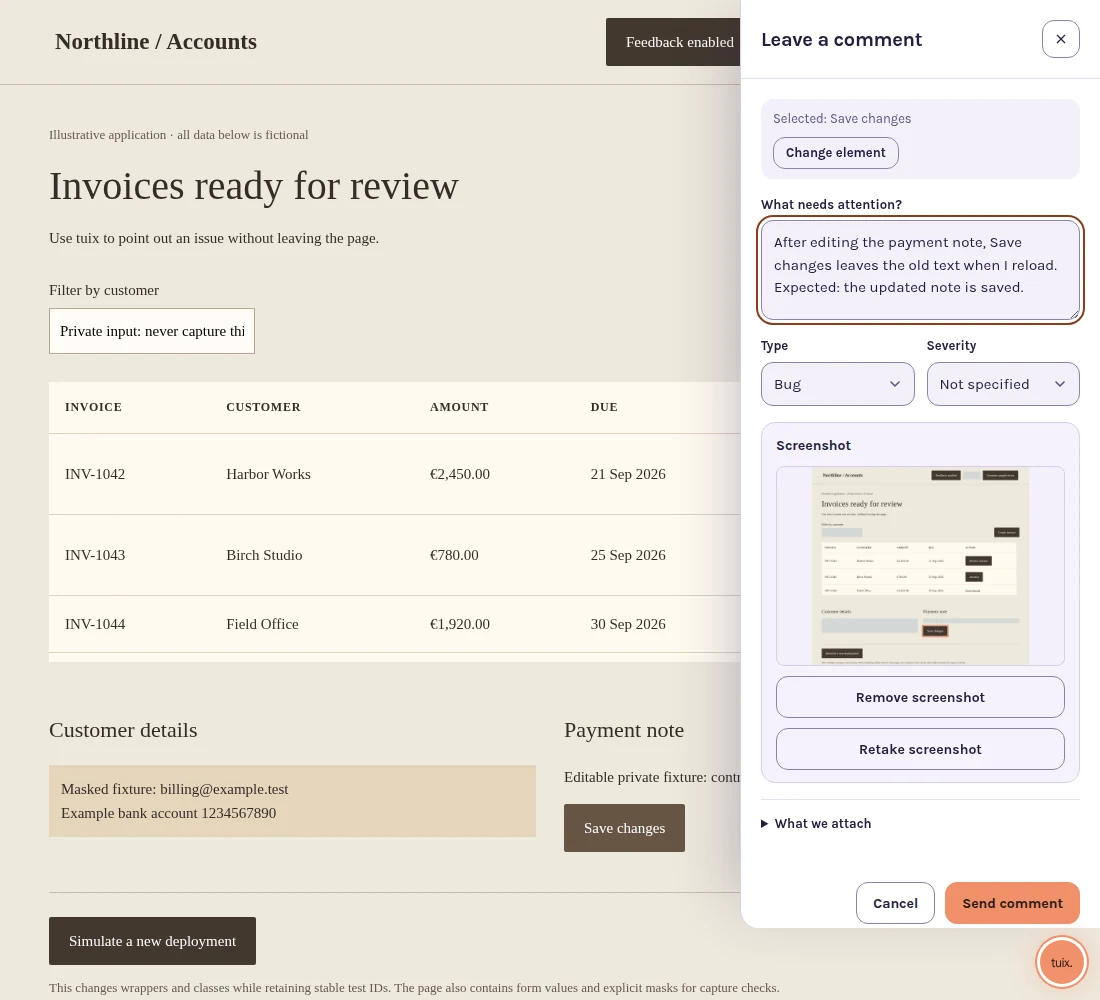
An annotated screenshot is helpful for a visual problem: it shows the crop, spacing or overlap the client saw. Ask for the page URL and viewport or device as well. A screenshot cannot show whether a link opens the wrong destination or whether a form saves data.
Website annotation keeps the note attached to the rendered interface. The client selects an element and explains the issue there. It is especially useful for “this heading,” “that button” and repeated components that look alike. Choose a tool whose access model fits your clients; an integrated review tool may require an existing site identity.
Ask for one issue and one desired outcome
Replace “the footer is wrong” with:
On the Contact page, the visible phone number is the old one. Change it to the number in the approved content sheet, and make the tap-to-call link use that number too.
This gives the developer a location, a reference and an acceptance check. It also prevents a common partial fix: updating the label while leaving the underlying link unchanged.
Ask clients to describe the problem before prescribing a technical solution. “The heading is hard to read over this photo on my phone” leaves room to choose a better crop, contrast or layout. “Set the heading to 24 pixels” may solve only one viewport.
Triage revisions before implementing them
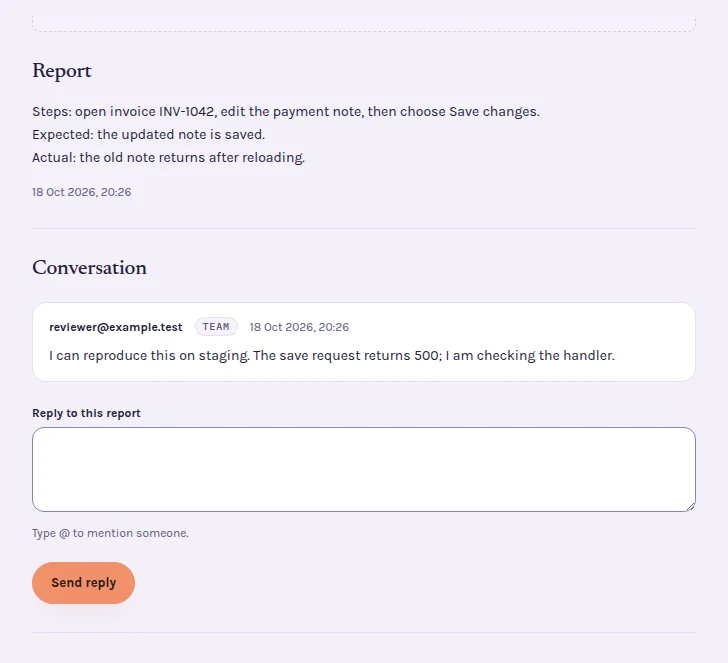
Review the incoming notes together. Separate broken agreed behavior from content corrections, design preferences and additional scope. Record the decision in the report so a developer and client do not have to reconstruct it from a separate call.
For each accepted revision, establish who implements it and who checks it. If two reports describe the same problem, link the discussions and explain which one tracks the work. Do not silently close a client's note because you recognized a duplicate.
In Tuix's agency workflow, a project organizes the client's reports and each report keeps its conversation with the affected element. Project permissions determine access. Client reporters use the host site's identity and do not need a separate Tuix signup to leave a note; this is not anonymous visitor feedback.
Verify the revision on the changed page
“Fixed” is a request to check, not proof of approval. Tell the client which environment contains the change and ask them to repeat the original action.
For the phone-number example, the verification checklist is short:
- Open the agreed staging page after the change is deployed.
- Compare the displayed number with the approved source.
- Tap the number on a phone and check the destination.
- Confirm the result in the original report, or explain what still differs.
If the interface changed substantially, include enough context to find the revised element. Keep the old screenshot as evidence of the original request, not as the standard for a new design.
Close the review deliberately
Summarize accepted revisions, remaining decisions and anything deferred to a later phase. A collection of closed reports is useful evidence, but your contract and approval process still determine formal acceptance.
Start with a small review of one or two pages before opening the whole site. Try collecting client feedback with Tuix, and check the plan limits for your active client projects. For WordPress sites, use the WordPress review guide to confirm who can report.