How to Write Better Bug Reports With Screenshots and Console Logs

“Save does nothing” identifies a symptom. A reproducible report also explains the state before the click, what should have changed and what actually happened. Screenshots and logs help answer those questions; they do not replace the explanation.
Write the smallest reproducible sequence
Start from a state another person can reach. Name the page, required role and relevant test data without sharing passwords or private customer records. Number the actions in the order they happen, including a reload if it changes the result.
A useful example is:
- Sign in to staging with the standard test-editor role.
- Open the sample invoice and change its quantity from one to two.
- Click Save changes once.
- Reload the page after the saving indicator disappears.
Expected: the quantity remains two and the total reflects it. Actual: the quantity returns to one. State whether you reproduced it once or repeatedly. “Happens every time” should mean you actually repeated those steps.
Use a screenshot to show the relevant state
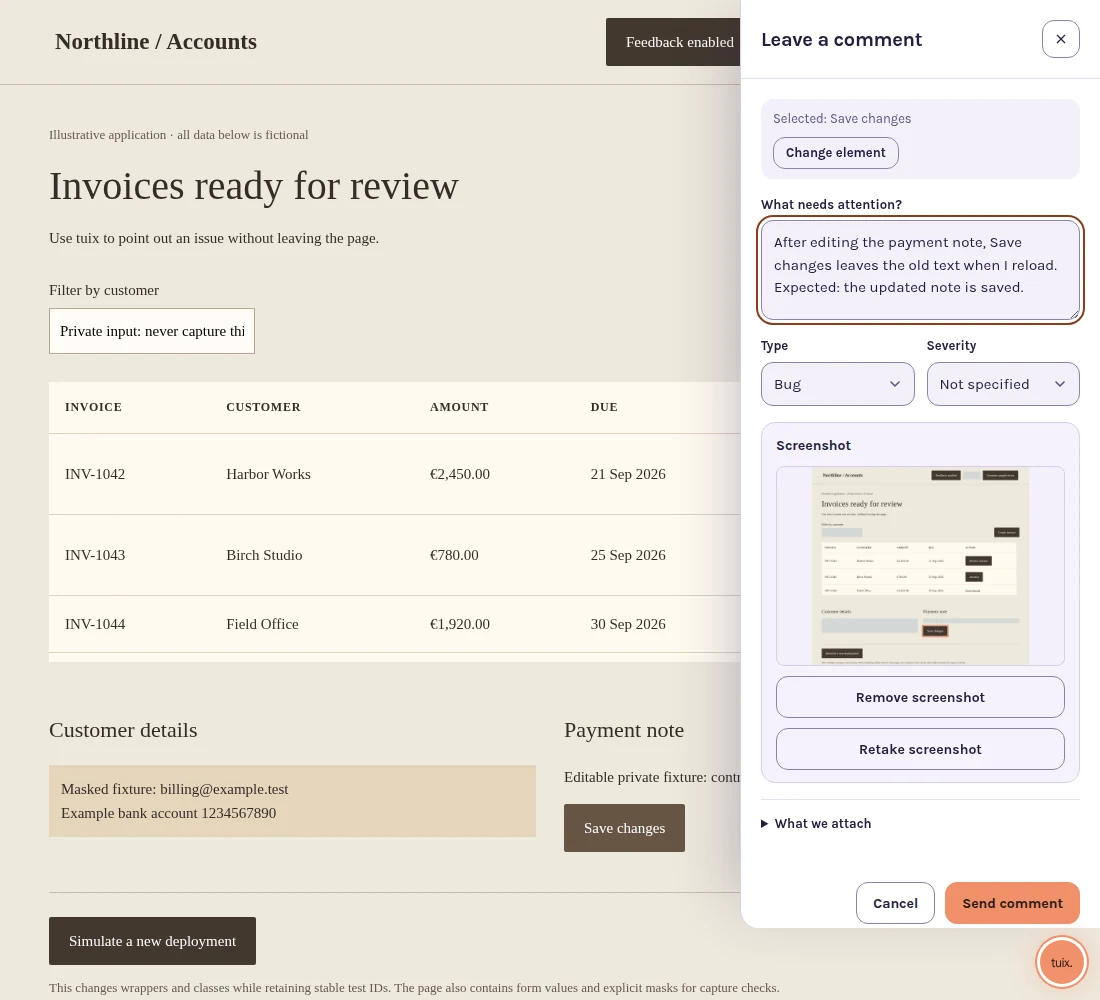
Capture the page at the moment that explains the problem. A screenshot of a generic error after navigating elsewhere may hide the component that triggered it. Keep enough surrounding interface to identify the location, and mark the affected element without covering the evidence.
For a layout bug, include the viewport dimensions and whether the page is zoomed. For a stateful defect, a before-and-after pair may be more useful than one image. Label which state each image represents.
Remove or mask personal data before sharing. Check the finished image rather than assuming every sensitive region was automatically hidden. In Tuix, screenshot capture follows project settings, and the reporter can review or remove the screenshot before sending.
Record environment details that can change the outcome
Include the environment, page address, browser version and viewport. If the application exposes a build or release identifier, record it. A developer cannot reliably compare a staging failure with a different production build without that distinction.
Also note conditions that are not obvious from browser information: an expired session, a particular permission, a slow connection or a feature setting. Record only conditions you observed. “Probably a cache problem” belongs in a hypothesis, not in the reproduction steps.
Read console and network evidence carefully
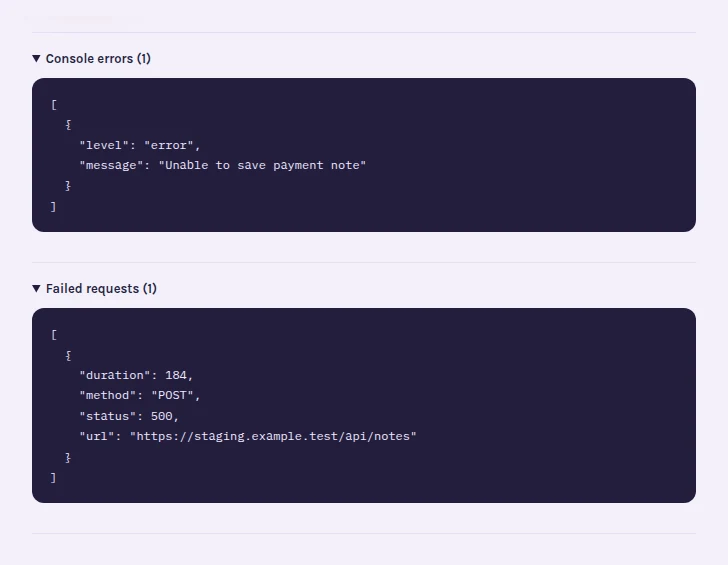
A console error near the failed click is a useful lead. Copy the relevant error text and timing. Do not paste an entire console history full of unrelated warnings or sensitive values. A warning is not necessarily the cause; a missing error does not prove success.
For a failed request, the method, sanitized path, status and timing may be enough to start an investigation. A server error establishes that a request failed, but does not by itself identify the faulty source file. A browser-side failure with no HTTP status may involve connectivity, cancellation or another condition that needs investigation.
Tuix can collect errors and warnings and failed fetch/XHR metadata while capture is active. Open the widget before reproducing the action if you need fresh evidence. Capture is bounded and can be disabled or filtered by the project. Request bodies, response bodies and headers are not part of that capture.
Keep observations separate from hypotheses
Here is a portable report example, not an exact Tuix API payload:
{
  "title": "Invoice quantity resets after saving",
  "environment": "staging",
  "element": "[data-testid=save-invoice]",
  "steps": ["Change quantity to two", "Save", "Reload"],
  "expected": "Quantity remains two",
  "actual": "Quantity returns to one",
  "observedRequest": "POST /api/invoices returned 500",
  "hypothesis": "The save may fail before persistence"
}
The request is evidence; the persistence explanation still needs checking. This distinction helps both a human developer and a coding agent avoid treating an early guess as an established cause.
Define the verification before closing the report
After a fix, repeat the same sequence on the build that contains it. Check both the immediate display and the persisted state after reload. If the original issue depended on a role or browser, include that condition in the retest.
Add a regression test where practical, but do not claim a test passed unless it ran. The reporter's confirmation and an automated test provide different evidence; neither should be invented to finish a status update.
Explore Tuix's visual bug reporting workflow to keep this evidence with the affected element, or use the QA staging workflow to organize the retest. If an agent will investigate, see how to give it reproducible reports.